
Computing Services
The MIE Computing Services Office provides IT support for faculty, staff and research laboratories in the department.
Full-time computer specialists are in charge of maintaining the integrity of the computer systems, installation and repair of equipment, and responding to user problems. Please contact mie.helpdesk@utoronto.ca
MIE faculty, staff, research graduate students (PhD, MASc candidates) and researchers (postdocs, research associates, etc) may request a MIE Network Account which provides access to licensed software and network services, including Remote Access (VPN).
Non-research students (MEng, undergraduates) obtain computing access through the Engineering Computing Facility (ECF).
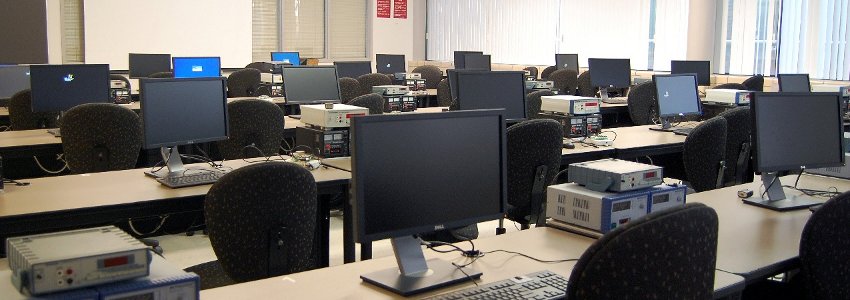
Computing Services: MIE Account | Software | Printing | VPN | SendFile
To apply for MIE Network Account
- Graduate students with MIE supervisor and researchers please submit the Application Form to Computing Services offices. Approval from research supervisor is required (signature or email to Computing Services).
- Faculty and Staff please contact Computing Services.
UPDATE: MIE Accounts provide access to the MIE network, VPN and research software. MIE Email service is no longer included.
Other Computing Resources
- Research labs provide specialized computing resources for your research needs. Please contact your supervisor or lab manager.
- MEng students may apply for computer accounts on the Engineering Computing Facility (ECF) for course related work. ECF maintains computing labs with numerous software titles.
- Graduate course instructors can request ECF accounts for their class. Please see details and procedure on the ECF website.
Contact
- All requests for MIE Computing Support should be sent to mie.helpdesk@utoronto.ca